
 Case Details
page.
Case Details
page.Some courts will allow you to submit an additional
payment for a case. You'll access this functionality through the Case Details
page.
Launch the appropriate Case Details page. Perform a case search, if needed, and select the Case Number from the search results.

Click the Pay Additional Amount button. The File pane is displayed.
Input a Client/Matter Number, if one is required.
Select the arrow in the Filer field to display a list of possible filers.
This list is populated with eligible filers you're connected to. If you have an assigned user role, your name will be listed as well.
If the filer you want isn't listed, click Don't see your filer for details on locating the filer.
Select the Filer.
Once the filer is selected, an additional pane is displayed.
The Filing Name defaults to Ad-Hoc Payment.

Select the appropriate payment type from the Payment Type field drop-down list.
The payment type may be dynamic or static. A dynamic payment requires the user to input the amount paid, whereas the amount of the static payment is set by the court.
If you select a court specified payment type, the associated amount will auto-populate the Fee field.
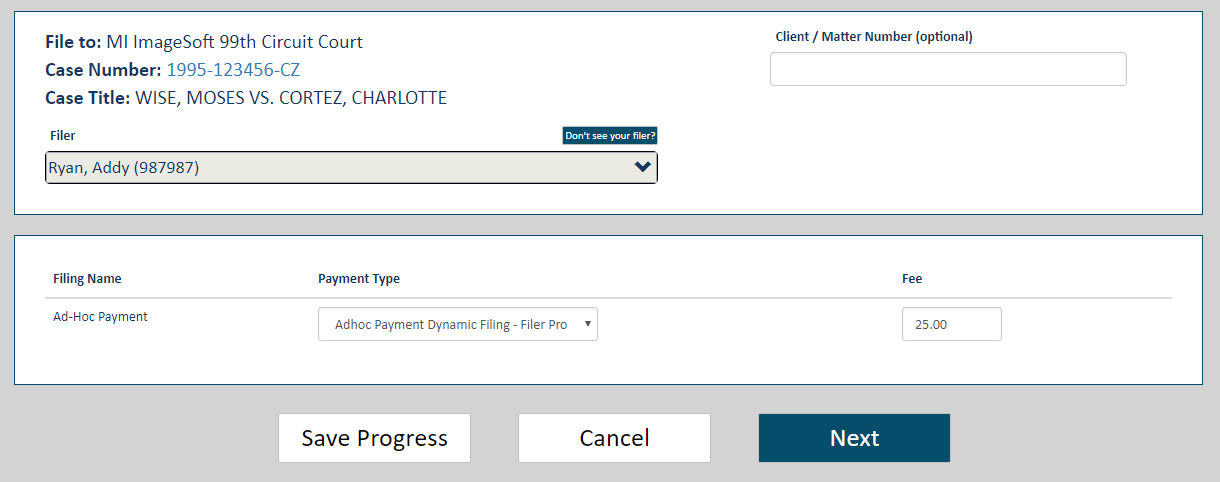
If you select the Filer Provided Fee option, input your payment amount in the Fee field. Enter a valid numeric value; for example, 25.00. You must input a value greater than $0.00.
The court can configure the fee format. For example, a court can choose to accept only whole dollar amounts and not allow decimal values ($50 vs $50.15). If the fee you input does not adhere to the required format, an error dialog will display. The dialog may list the required fee format.
Note: The court can configure certain ad hoc payment types to require information from the filer. If such a payment type is selected, a Description field is displayed.
Input details about the payment in this field.
If you fail to input a description, a warning dialog will display when you click Next to submit your payment.
Click OK to close the dialog and input a description.
Click Next on the Upload pane to submit your payment to the court.
Your submission is validated.
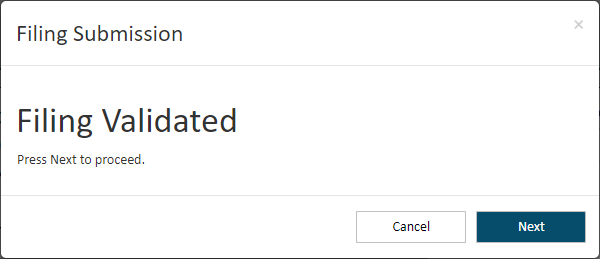
Click Next.

Any processing fees mandated by the court for the ad hoc payment type you selected will be computed based on the amount you pay.
In the Checkout pane, confirm the fees listed are correct.
Select the appropriate Payment Account. Depending on court rules, a payment account can be a credit card, escrow account, or inter agency transfer account. Escrow and inter agency transfer accounts must be authorized by the court. Refer to the Glossary for more information.
If no payment accounts are listed, click the Add Payment Account button. Learn how to add a payment account.
Expired payment accounts are identified as such on the Checkout dialog and cannot be selected for payment.

Click Submit to submit your payment to the court. A confirmation dialog is displayed when the submission is successful.
Click OK to close the dialog.
The History page is displayed. Your ad hoc payment is listed under the My History tab.
If you click the Ad hoc payment Filing Name, properties related to the payment are displayed as they are for a court filing document. See Filing History and Properties for details.
Learn how to download your filing's payment receipt.
If your notification settings are set to notify you when a payment transaction occurs, you'll be notified via text and / or email.