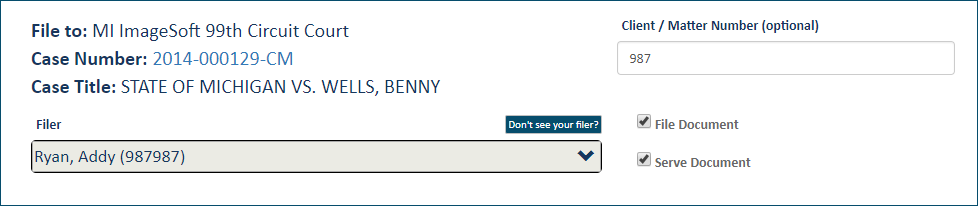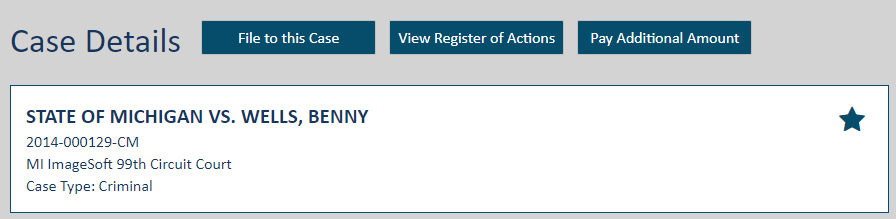
The Case Details page lists information about an existing case and your interactions within that case.
Case specifics such as Court, Case Number, and Case Title
You can file to the case, view the Register of Actions, and/or identify the case as a Favorite.
Select courts allow you to download a case file from within TrueFiling. See Request the Case File for details.
Some courts allow you to make additional payments toward a case. See Submit an Ad Hoc Payment to the Court for details.
If the case is not available for eFiling, this message is displayed…
Case not available for eFiling. No Filing Types available.
… and the File to this Case button is not available:

If appropriately configured, a court can delete a case from TrueFiling. In such courts, if a case has been deleted, you cannot locate it through a case search, access its Case Details page, or file against it.
Case contacts
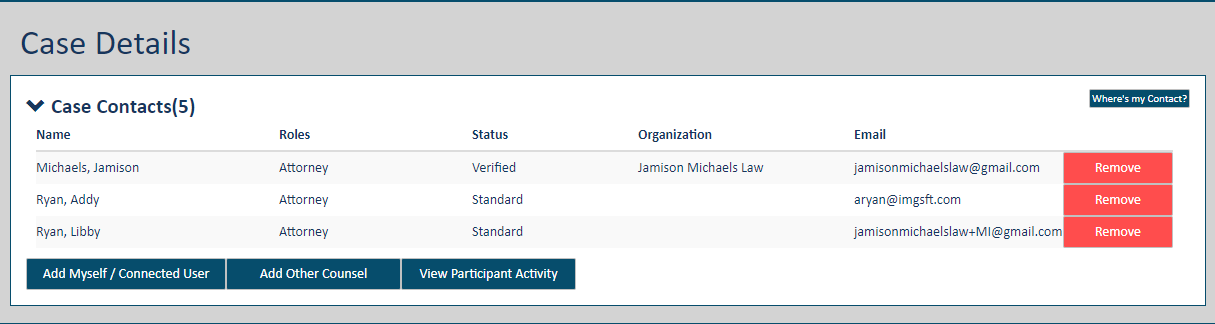
A case contact can be selected for document service. You can add yourself, a connection, or other counsel (if allowed by the court) as a case contact.
A court can be configured to classify case contacts as either Verified or Standard. A contact’s classification determines if and how they can see other case contacts throughout TrueFiling, as well as if they are visible to other contacts and can be selected for servicing. A court can also classify case contacts but place no restrictions on the information displayed.
See Verified and Standard Case Contacts for details on how courts can configure case contacts.
You can also view a list of the contacts added to the case and who added them. See View Participant Activity.
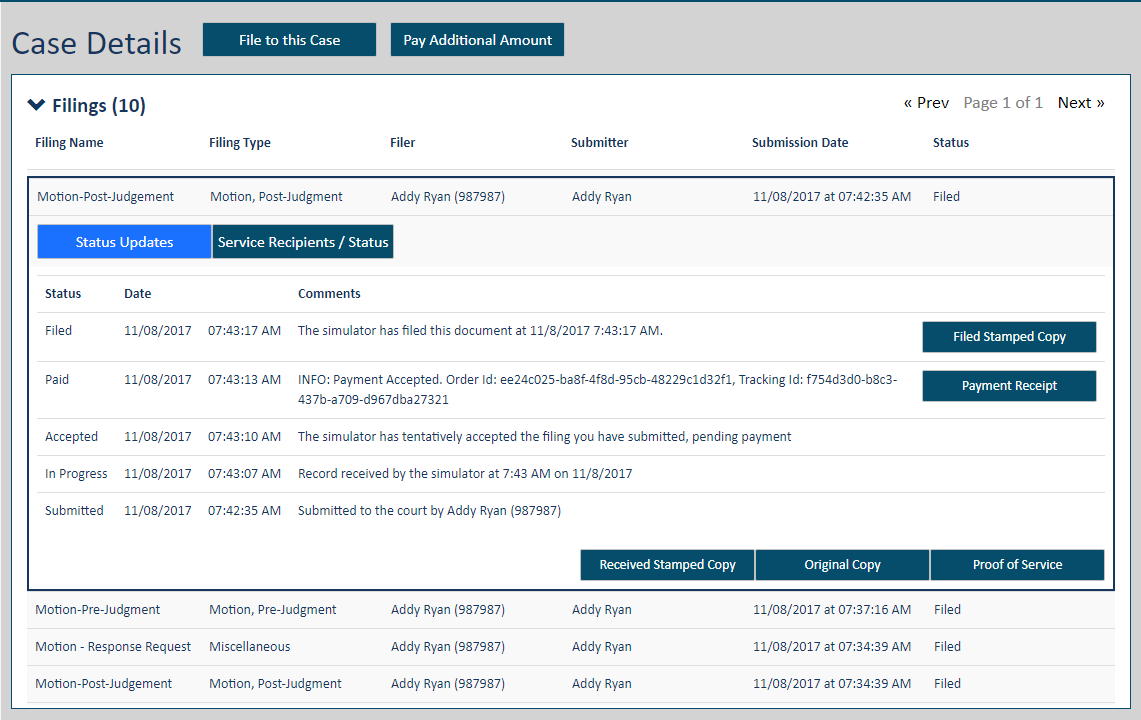
Submitted filings, their status with the court, and if they've been served and accessed (click the Filing Name to expand the pane).
You can also download documents related to a filing such as a Proof of Service, stamped copy, or payment receipt. See Download Documents Related to your Filing for details.
Request the Case File
If allowed by the court, you can request the case file and download the documents through the Register of Actions section on the Case Details page. In such instances, the Case Details page will not display the View Register of Actions button.

If you are not a Verified case contact, the court may not allow you to have access to the Register of Actions. See Verified and Standard Case Contacts for details on court configured limits for accessing and requesting case filings.
To access the Case Details page, do one of the following:
Perform a search to locate your case and then select the Case Number in the search results.
Access the History page, locate your filing, click the Filing Name, and then click the Case Number on the Properties pane.
Access the  File pane and then
select the Case Number.
File pane and then
select the Case Number.