
In merged documents, one or more "child" filings are appended to a "parent" filing.
You'll upload a document and then merge it with the primary document. The result is one PDF file containing all the filings.
Be aware, the resulting file cannot exceed the maximum file size established by the court.
The court determines if merged documents are allowed.
IMPORTANT: The order of your filings in the Upload pane will determine the order in which they're merged into the single PDF file. You can re-order the filings before you merge them.
First, upload the primary document. See Upload your Filing Documents for details.
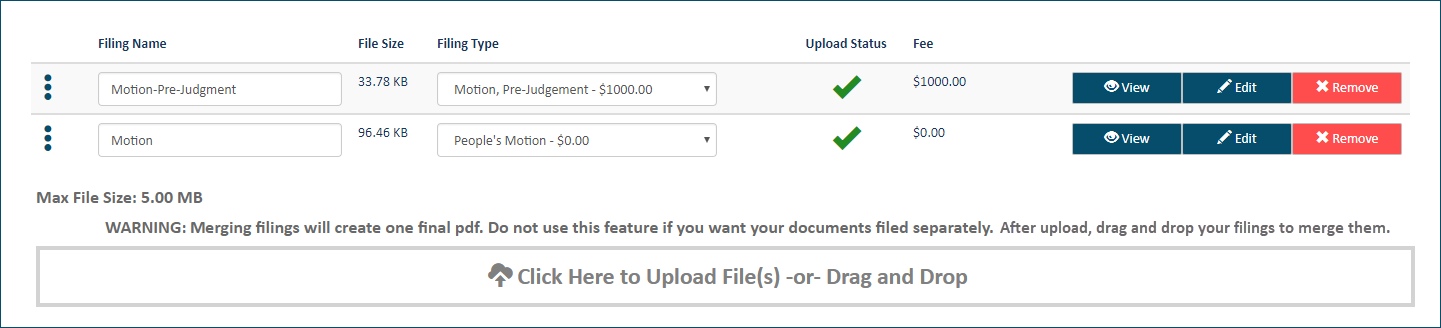
Next, upload the document to merge.
Select the Filing Type.

Select and hold the vertical dots beside the Filing Name of the document you want to merge with the primary document, as shown in the above image.
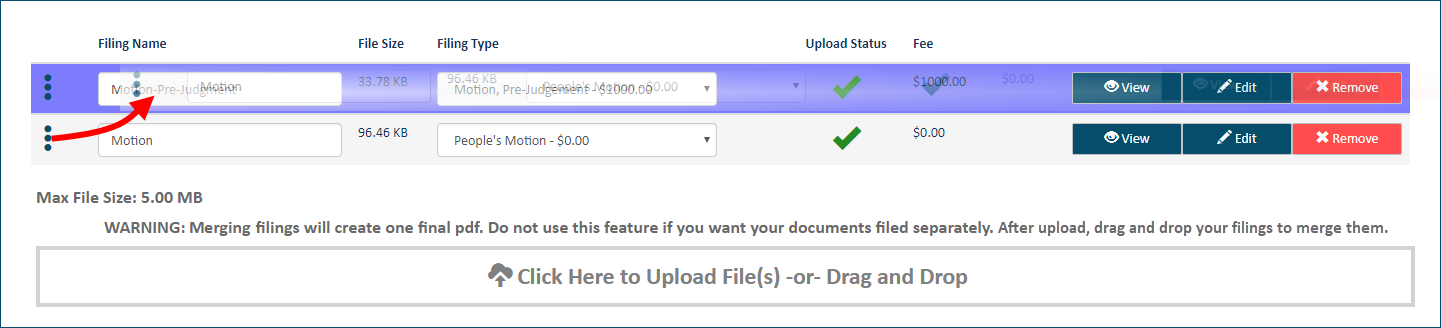
Drag the dots to the row that contains the primary document until the row is highlighted in purple.
Release the dots. The document is now merged with the primary document.

Repeat steps 2 - 6 as needed.
Special notes:
The Filing Type of the merged document defaults to MERGED FILING.
Documents that are merged with a primary can't have a Note added. As a result, the Edit button is not available for documents that were merged.
See Separate Merged Documents to learn how to release a merged document from the primary document.
See View and Download Merged Documents for details on how to download any document in a merged document that's been submitted to the court.