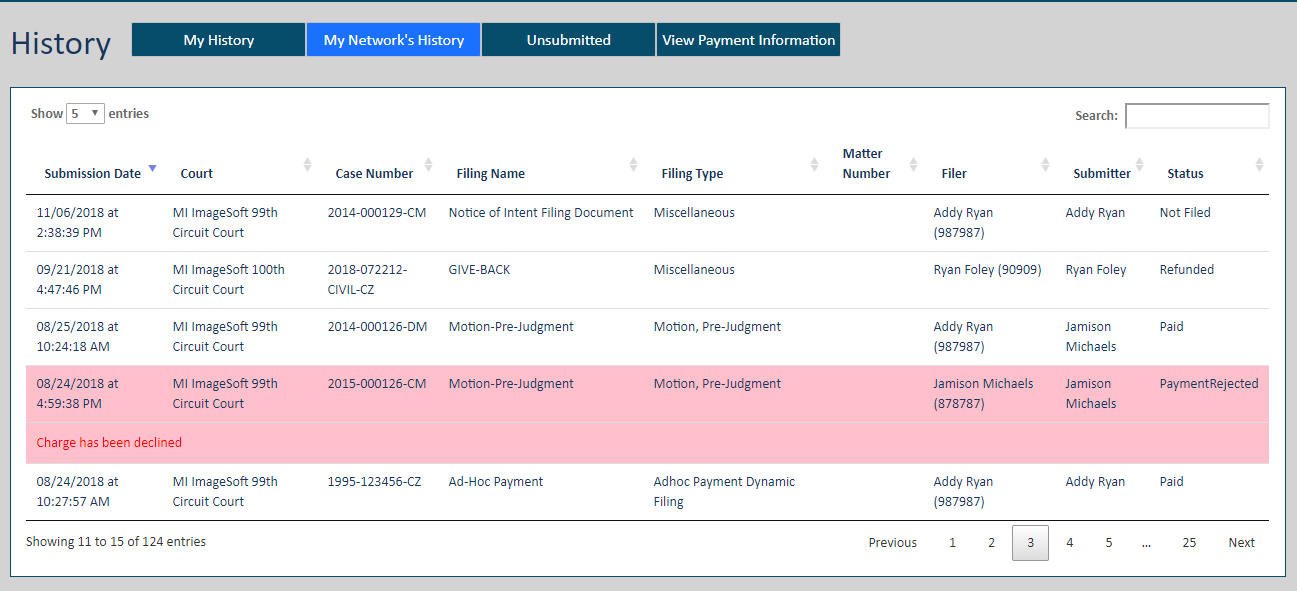
For each filing submitted to the court, you can view the filing details, its properties, its status, and who's been served (and if they've accessed the filing document).
If you or your connections have no submitted filings, a message is displayed to let you know when you access the My History or the My Network's History tabs..
Click History under Main Pages in the navigation pane.
Specify which filings to display:
My History - filings submitted to the court by you or by a connection on your behalf
My Network's History - filings submitted by you and those in your connection network
To access the properties of a submitted filing and download related documents:
Select the My History or My Network's History tab.
Locate the filing and click the Filing Name. A pane with three tabs is displayed. (Click the Filing Name once more to retract the pane.)
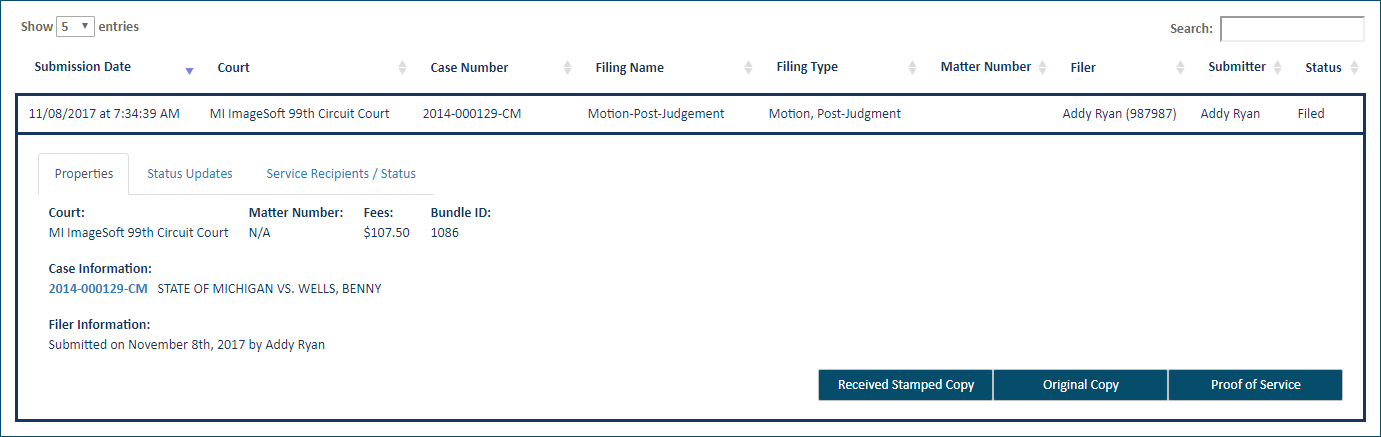
The details and history of the filing are accessed through these tabs:
Filing Properties
The Properties tab lists details about the case and when the filing was submitted and by whom.
You can click the Case Number (listed below Case Information) to launch the Case Details page, which lists the case contacts and any filings submitted to the court.
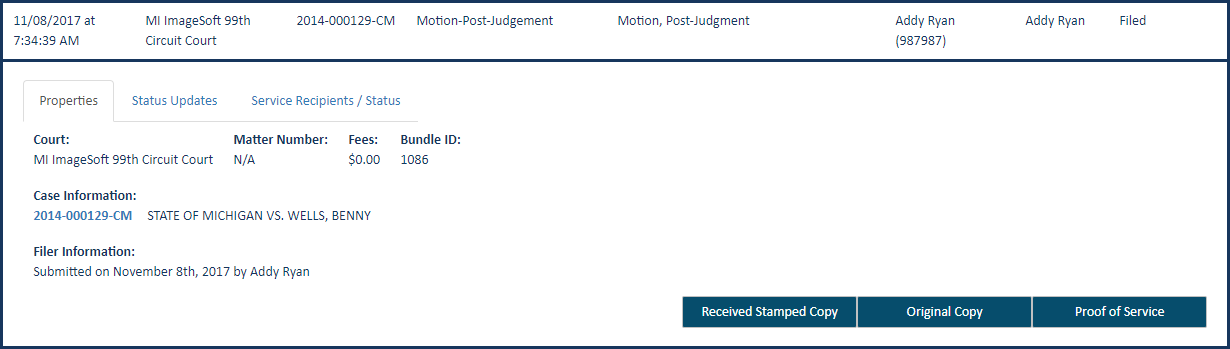
Note: If the court has deleted the case in TrueFiling, the case number link is not enabled. As a result, while you can view the history regarding a case and its submitted filings (including status updates and service recipient statuses), you cannot access the Case Details page.
Status Updates
The status of your filings with respect to the court is listed.
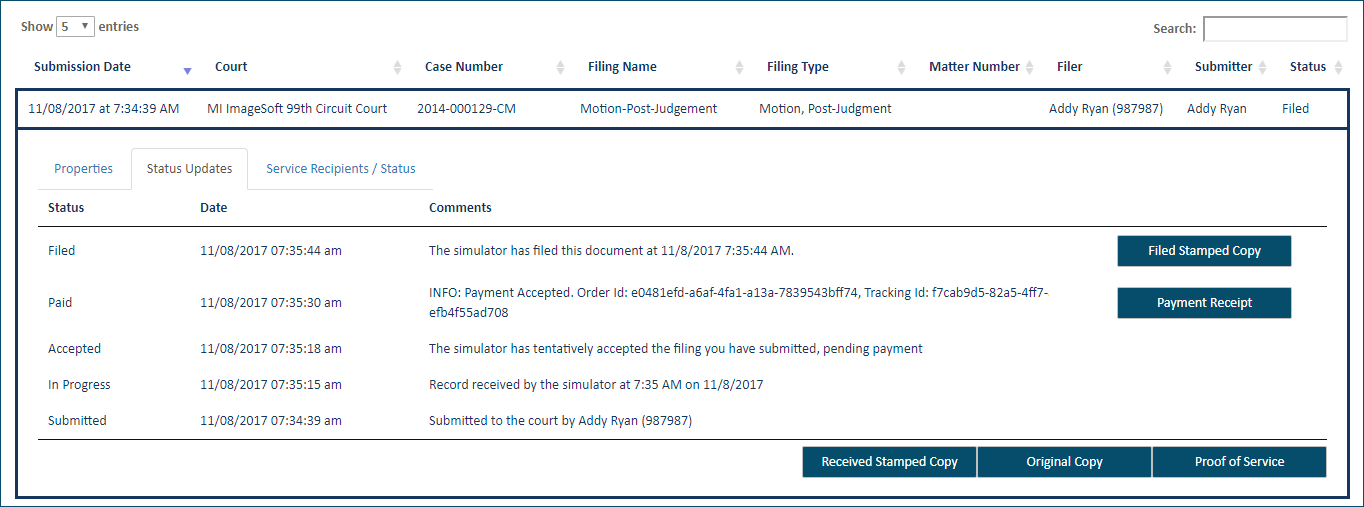
Statuses include:
Submitted - The filing data was submitted by the filer to the system for the Clerk to review. The filing is NOT yet part of the official case record.
In Progress - The filing data has reached the court’s filing review system. The filing is NOT yet part of the official case record.
Note: If the court sends an email message to a filer through the filing review process, the comments in the email will be displayed in a line item with an In Progress status.
Accepted - The filing is now ready for payment to be collected. When the filing reaches this state, it is in queue for the Clerk to review. The filing is NOT yet part of the official case record.
Paid – Payment processing is complete. If the filing required payment, the specified payment account was charged, and a receipt is available. The filing is NOT yet part of the official case record.
Filed - The filing has been accepted by the Clerk, and the filing IS now part of the official case record.
Rejected - The filing has been rejected by the Clerk. The reason for rejection is listed.
Not Filed - This is the final status of a filing that was served but not filed.
Payment Rejected - Payment for the filing failed. Reasons can include an expired credit card, a closed account, insufficient funds, or the fact that the card was deleted from TrueFiling.
Refunded - A payment charged for the filing has been refunded.
Important: If the court refunds a payment charged for a filing, the credit card service fee is not refunded.
Refund Attempted - The court has requested a refund of the fee.
Refund Failed - The fee refund requested by the court has failed.
If the selected filing is a merged document, a fourth tab - Merged Documents - is present.

Select this tab to display a list of the documents that comprise the merged document. See View and Download Merged Documents for details.
Service Recipients / Status
When this tab is selected, the Last Email Status column identifies the filing's last email status and includes the appropriate time stamp. Delivery failure is noted as well. The Last Recipient Activity column identifies the filing's last action with respect to the recipient.
The court can be configured to display the available email statuses when you hover your cursor over the Last Email Status column header.
If the filing was submitted as File Only (not served), a message indicating that fact is displayed.
The time listed is in the court's local time zone.
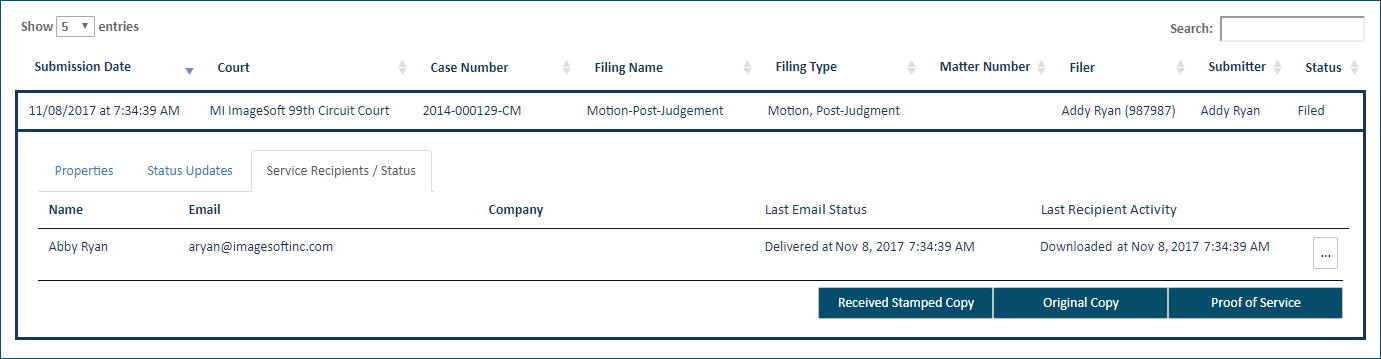
You can access a recipient’s complete servicing history for a filing.
Select the ellipsis button beside the Last Recipient Activity column entry. A dialog is launched that lists the recipient’s servicing activity with respect to the filing. For example:
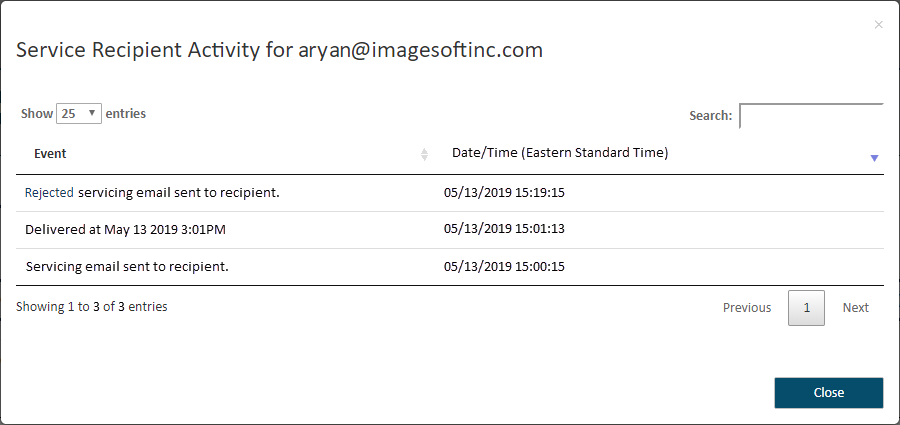
The court determines whether the time is shown in their local time zone (for example, Eastern Standard Time) or in UTC (Coordinated Universal Time). Regardless of time zone, the time is displayed in the military time format.
The activity is sorted by date / time in descending order. The dialog will note if no activity exists.
Click Close to leave the dialog and return focus to the History page.
On the History page, you can download documents related to your filings such as the original and stamped copies of your filings, as well as any Proofs of Service and payment receipts. See Download Documents Related to your Filing for details.
Also see Unsubmitted Filings